 markpin
Markpin is a free Chrome extension for reading on the web the way you read a paper book: highlight or underline a sentence, add a mark like ? or ★, write down why, and come back to it later. Each page you save becomes a Markdown file in a folder or Google Drive you connect. Version 1.4.0 adds something I've been meaning to build for a while: quote cards. Pick a sentence you marked, and Markpin turns it, along with your note, into a clean PNG you can keep or post on X or Instagram.
Why cards instead of sharing
Since early October I've deliberately kept sharing and discussion features off the roadmap. They need servers, accounts and moderation, and Markpin is built to run without any of that. Tools that tried to put discussion right on the page, like web annotation layers or shared highlights on blogging platforms, rarely got people talking. People read alone and talk about it somewhere else. What stayed on my list was a lighter idea: export a highlight and its note as an image, and let the conversation happen wherever you post it.
In mid-October someone I know asked for two things: a way to export a passage with the underline and note still visible, and a way to share with a group or in public. Version 1.2.2 took care of part of the first with "Copy all clips," which puts your clips on the clipboard as Markdown. Quote cards cover the rest of it. As for group or public sharing, I still have no plans for that.
The moment I had in mind is a simple one. You've marked a passage and jotted down what you thought about it, and you want the two together on one tidy card you can save or post.
What goes on a card
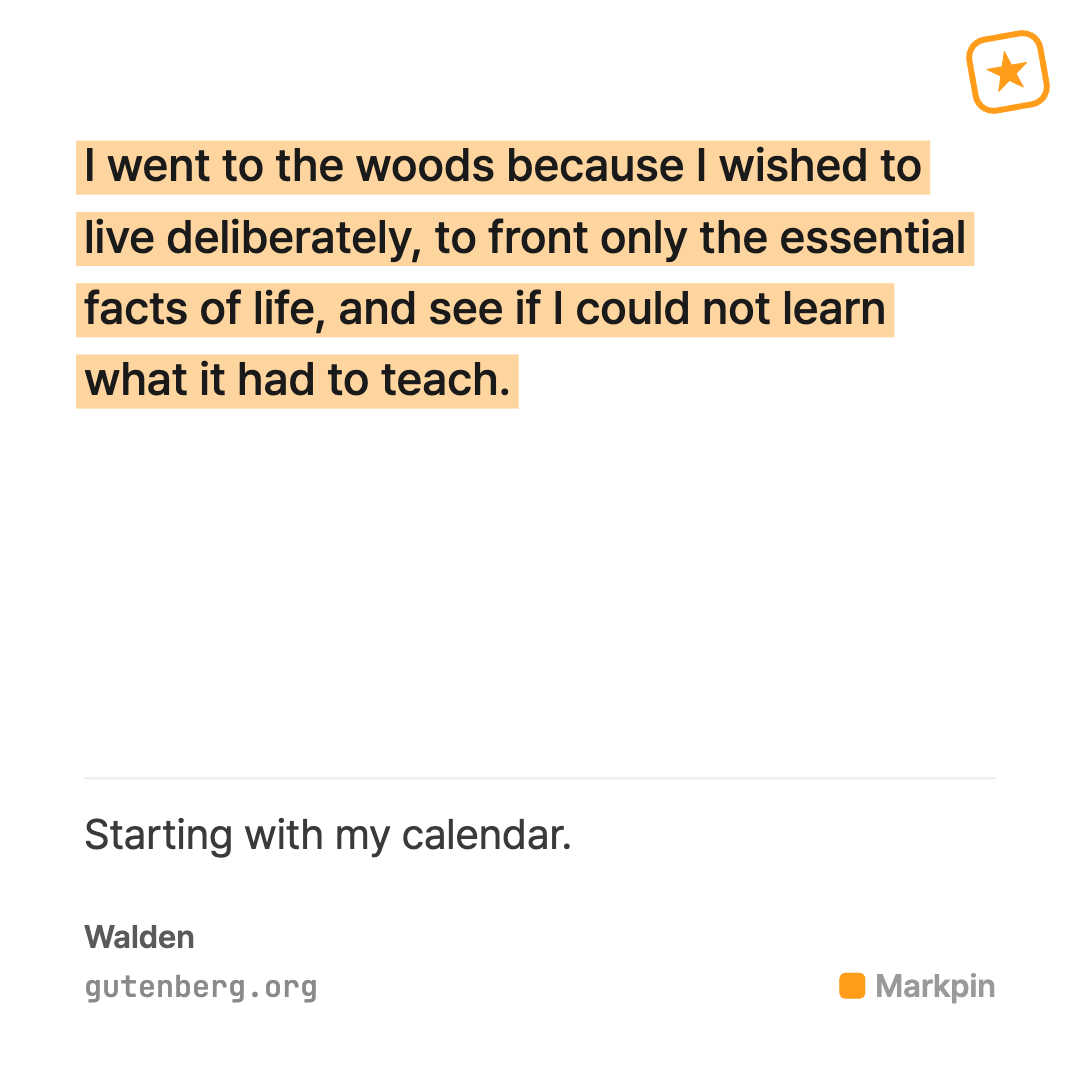
The card draws the sentence with the same pen you used on the page: highlighter, underline, wavy underline, double underline, strikethrough, box, circle or lasso. The lasso is hand-drawn and seeded with the clip's ID, so it wobbles on the card exactly the way it does on the page. Turn off "Pen as drawn" if you want plain text.
Your note goes under a thin divider and can run up to four lines. If there's no note, the quote is centered vertically instead. A mark (? ! × ★), if you added one, shows up as a tilted stamp in the top-right corner. The page title and domain run along the bottom, and you can add the date you marked it and the full URL. There's also a small gray "Markpin" wordmark, and you can turn that off as well. I didn't want the cards to look like ads for Markpin.
Cards come in light or dark, at 1:1 (the default), 4:5 or 16:9. They render at 2x, so a square card is 1080×1080 pixels. The highlighter is a touch stronger on the card than on the page, so it still reads as a highlighter when someone sees the card small on a phone.
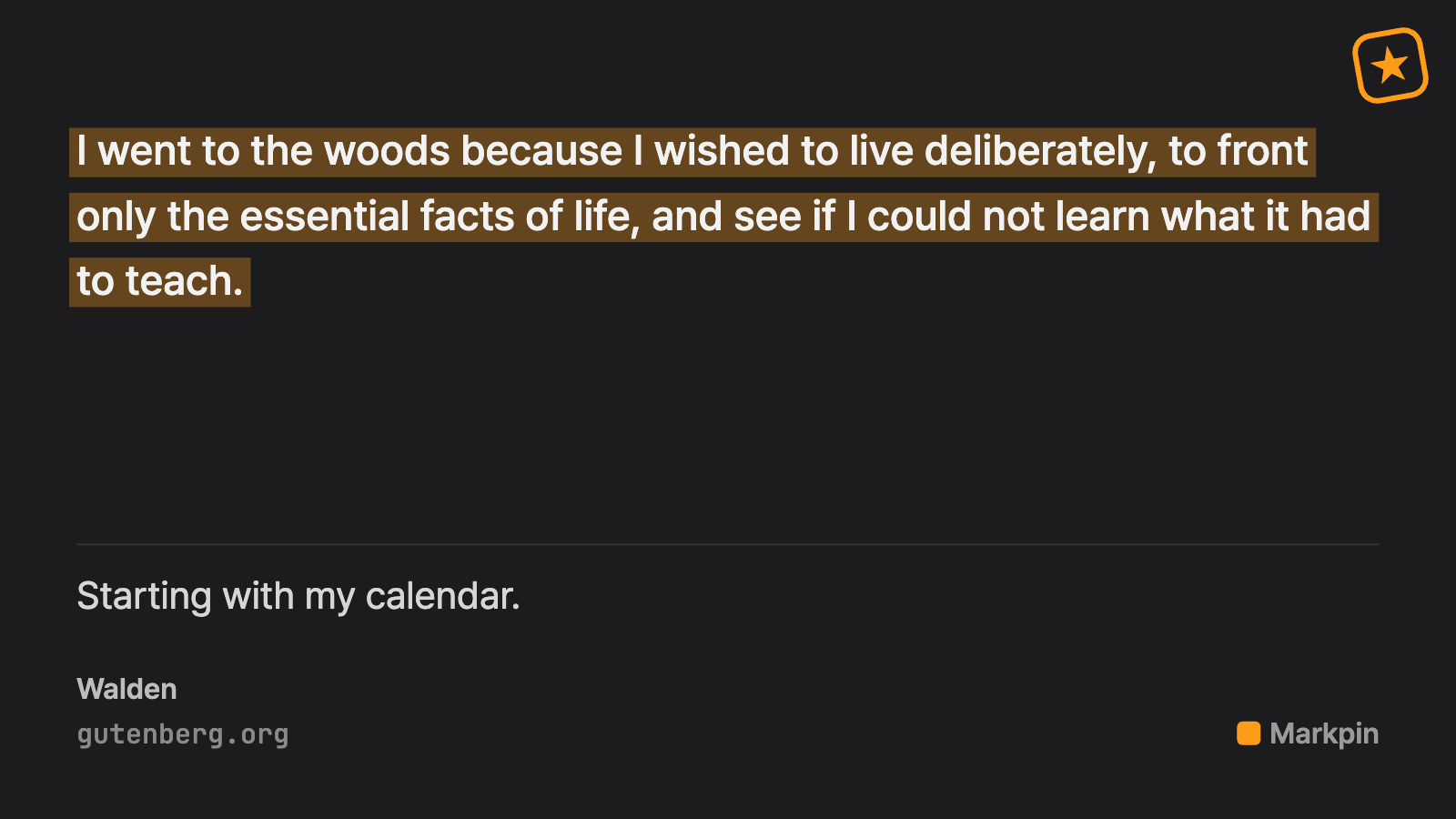
For a long quote, the text steps down through three font sizes. If it still doesn't fit, the end gets cut off with "…" at a word boundary, or at any character in Korean, Japanese and Chinese. The preview is the actual render, so you'll see any cut before you save.
A few build notes
I draw the cards directly with Canvas 2D instead of using an HTML-to-image library, and handle line breaks, the ellipsis and the pen marks myself. The pen marks needed custom drawing code anyway, and skipping the library meant fewer dependencies and no trouble with CSP or fonts. The preview is that same canvas, scaled down.
Both fonts, Pretendard and JetBrains Mono, ship with the extension; nothing loads from the web. Pretendard is split into many unicode-range subsets, so the code first asks the browser to load the font for the exact text it's about to draw. Otherwise only some subsets might be loaded, and Korean text could fall back to a different font.
The box, circle and lasso reuse the geometry code from the content script that draws them on the page, which is why they match.
Taking the store screenshots turned up two problems. A comma or period could end up at the start of a line, so closing punctuation now stays with the word before it. And the tilted stamp could touch a box or circle drawn around the quote, so there's now a 12px gap between them.
Testing on my own computer on November 1 and 2 turned up two more. Boxes from the box pen overlapped from one line to the next; each box is now sized to its own line of text. And multi-select now starts with nothing checked, with a "Select all" / "Deselect all" toggle.
Limits
- Only text clips can become cards. Region (screenshot) clips aren't supported yet.
- Very long quotes get cut off with "…". That's on purpose: the card doesn't grow taller to fit, because social apps crop tall images.
- 1.4.0 needs no new permissions. If you download several cards at once, though, Chrome may ask you once to allow multiple downloads.
- Cards are a one-way export. Markpin doesn't sync them back or keep track of them, and deleting a page leaves its cards alone. The MCP server ignores the
cards/folder.
How to use it
- Open the side panel, or markpin.dev/app on your phone, and find a text clip.
- Click or tap the small card icon on the clip. You'll see a live preview of the card along with your options.
- Pick where the card goes: Download PNG, Copy (only for a single card), or Save to my folder, which writes
cards/<page-slug>-<first 8 characters of the clip id>.pnginto your connected folder or Google Drive. - To make several at once, click or tap "Card" at the top of the clip list and check the clips you want. You'll get one card per clip, all with the same settings.
Markpin remembers your theme, ratio and other choices for next time. The phone web app runs the same side-panel code, so cards work there exactly as they do in Chrome.
Version 1.4.0 also brings two smaller changes: the tag you picked in the side panel stays selected while you search, and the MCP connection guide now has an example of merging several tags into one.
Markpin is on the Chrome Web Store and needs Chrome 122 or later. If you make a card that looks off, say a pen drawn wrong or a quote cut in an odd place, please send it my way at support@markpin.dev.