 markpin
Markpin is a Chrome extension for reading on the web the way you read a paper book: highlight a line, write down why. At the desk it has become usable enough. What was missing was the other half of the day, reading on the phone and picking the page up at the desk later. The goal of this round was simple to state: take what already works in the browser and make as much of it as possible usable on a phone. Read on the phone, pick the page up at the desk; highlight at the desk, reread on the phone. Version 1.3.0 gets most of the way there. This post is about how it works on the phone and why it ended up shaped like this.
The short version
Open markpin.dev/app on your phone and connect the Google account you use at your desk. Your saved pages, highlights and notes are there. On Android, share a page to Markpin from any app and it's saved; select a sentence first and share, and that sentence becomes a mark. The page text isn't fetched by the phone. Your desktop Chrome fills it in. On iPhone, revisiting works today; saving and marking are still to come.
Why a web app and not the extension
I assumed I could ship the extension to phones as is. Chrome on Android simply has no extensions. Edge and Firefox on Android do, but they lack the side panel and getAuthToken, so the current build doesn't run there unchanged. Safari wants an Xcode wrapper and an App Store listing ($99 a year). Every phone was a different road.
So I started with the one road that works everywhere: a PWA at markpin.dev/app. Chrome on Android and Samsung Internet let an installed PWA register as a share target, so Markpin shows up in the share sheet of any app. What comes through a share is roughly the URL and whatever text you selected. Select a sentence and share, and it becomes one highlight; share without a selection and only the page is saved. Highlighting inside the page itself isn't something a PWA can do. That's what the Edge and Firefox extensions are for, and they're the next plan.
Why the desktop fills in the text
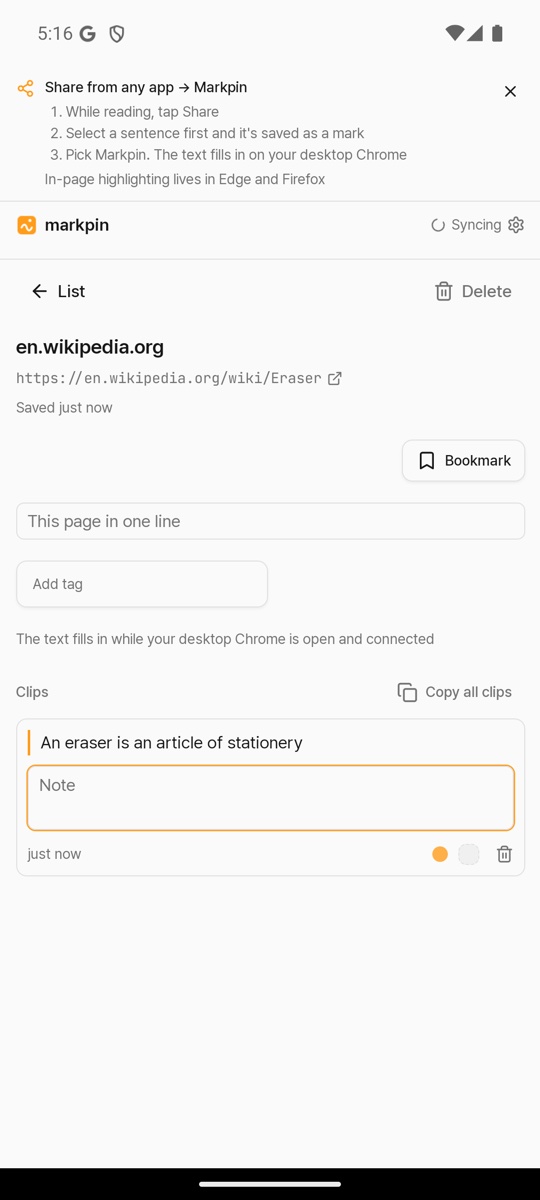
A page that arrives through a share has a URL and nothing else, no title, no body. The PWA could try to fetch the URL itself, but reading another site's HTML from inside a browser is blocked by CORS most of the time, and putting a server in between goes against the one rule Markpin has kept from the start: no server, no account. So the desktop extension does it. On its next sync it notices a page with an empty body, fetches the URL, extracts readable text (this is where the new offscreen permission comes from; a service worker has no DOM, so the parsing happens in an invisible document), and writes title and text back to Drive. The phone picks that up on its next sync and the title changes from en.wikipedia.org to Pencil.
The honest downside: your desktop Chrome has to be open and connected to Drive for the text to arrive. While testing, I once waited a long time without noticing that the desktop extension was sitting in "Reconnect needed", and the phone gave no hint at all. That's why the line on the phone now says "The text fills in while your desktop Chrome is open and connected". Telling the phone what the desktop is doing is on the list for later.
One Google Drive for both
The desktop extension writes to Google Drive with the drive.file scope only, which means "this app sees only the files it created". The catch is that "app" means OAuth client. If the extension and the PWA used different client IDs, they wouldn't see each other's files even on the same account. I learned this during research, so the first thing in the mobile work was moving the desktop extension's auth to a Web client, and the PWA signs in with the same client through a redirect. No server, and both sides look at the same folder.
Two devices editing the same page is now a real case, so merging changed too. It used to be page-level last-writer-wins with a .conflict copy when things collided. Now it's a three-way merge per clip, note and tag. Two highlights from the desk plus two sentences shared from the phone on the same page add up to four. That exact case came up during testing, and watching it merge without a copy was a relief.
Testing a phone without a phone
I don't own an Android phone. So the whole loop ran on an Android emulator (Play Store image, Chrome 124): share, save, connect Google, desktop fills the text, phone receives it. That's also where I checked sharing in airplane mode (saved locally, uploaded later), sharing text with no link ("Couldn't find a link in what was shared"), and that signing in brings you back to the home-screen app rather than a browser tab. There will be things only a real device shows. If something looks off, support@markpin.dev reaches me.
How to use it
- Open markpin.dev/app in Chrome on Android. In the menu, choose "Add to Home screen" and then "Install". It opens like an app, and the install is what makes it appear as a share target.
- Tap "Connect with Google" and sign in with the account you use at your desk. A moment later the list fills in with "n pages are here".
- While reading in any app, Share → Markpin. Select a sentence first and share, and that sentence becomes a mark.
- If your desktop Chrome is open, title and text fill in within a few minutes, and the phone shows them on its next sync.
On iPhone, open the same address in Safari and use Share → "Add to Home Screen". Revisiting works. Saving and marking need a Safari extension, and I'm collecting sign-ups to decide how soon that comes.
Next is the Edge and Firefox extension for Android, so you can highlight inside the page on a phone too. Before that, I'd like to hear from people who try the PWA. What I most want to know is whether "save on the phone, read at the desk" is a loop people actually use.