 markpin
Obsidian's own Web Clipper is the best way I know to get a whole page into a vault. What I kept missing was the part that happens while I read: marking a line, saying why I marked it, and finding my place again the next day. I built Markpin for that part. It writes plain Markdown, so what it saves can live in the same vault. This post covers the setup and what ends up on disk.
What you get
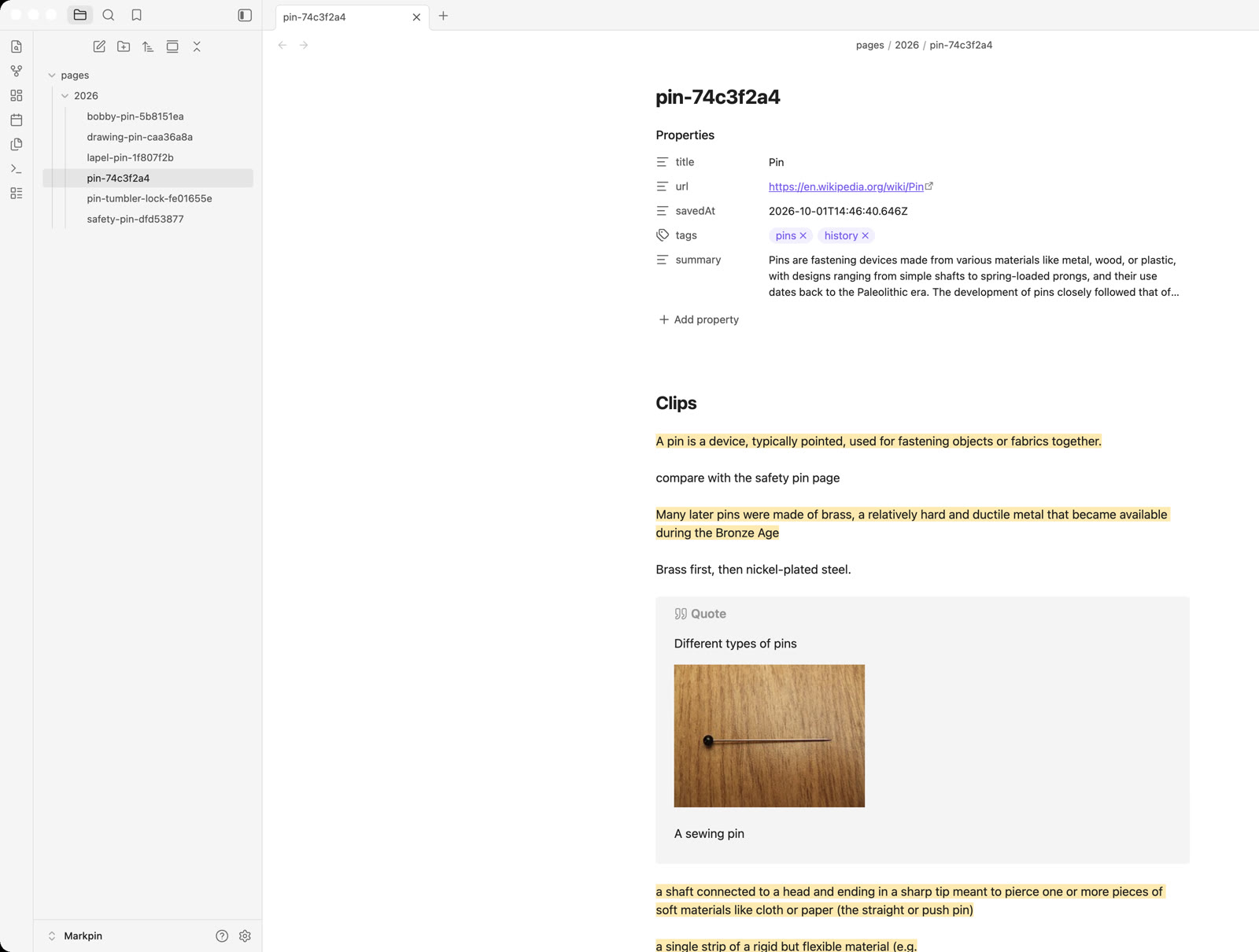
One file per web page. Each highlight is written as a ==highlight== with your note under it. The page's title, URL, tags and your one-line takeaway are properties.
Set it up
- Install Markpin from the Chrome Web Store. It's free and there is no account.
- Open the extension's options. Under Storage, pick Local folder and choose a folder inside your vault, for example
Vault/Markpin. Chrome asks you to confirm access to the folder. After Chrome restarts, Markpin's options may say it needs the permission again. Click "Allow again", choose "Allow on every visit", and Chrome won't ask after that. - Under Markdown, pick the Obsidian template. It writes clips as
==highlights==and[!quote]callouts. The default template writes blockquotes.
The template applies to every file Markpin writes from then on. A page you saved earlier keeps its old shape until Markpin writes it again (a new highlight, note or tag), or until you run "Rewrite existing files" in the same options. Rewriting overwrites anything you changed by hand in Markpin's own properties or the body. Properties you added yourself are kept.
Read and mark
Select a sentence on any page. A small toolbar appears with two rows: Clip ? ! × ★ on top, and a dot for each of the other highlight colors plus Bookmark below. One click on a color or a mark saves the highlight. If the page wasn't saved yet, that saves the page too.
The four marks are reactions:
?a question!something new to me×I disagree★the key point
Right after the highlight is saved, a note box opens with a question already in it. The question depends on the mark: "Why did you mark this?" with no mark, "What are you wondering?" for ?, "What's new to you?" for !, "Why do you disagree?" for × and "Why does this matter most?" for ★. You can leave the box empty.
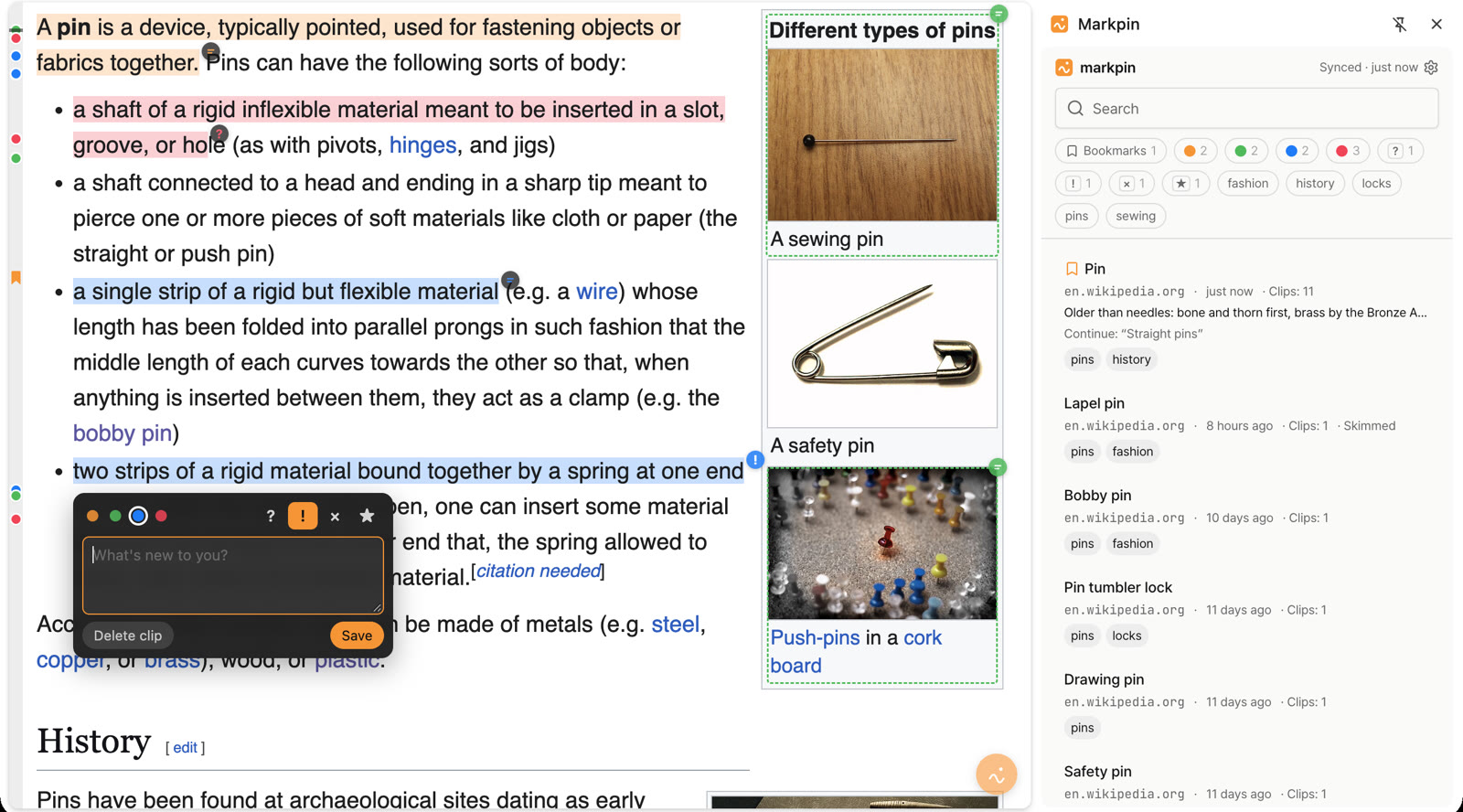
If you stop partway, leave a bookmark. A thin rail along the left edge of the page shows a dot for each highlight, a ribbon for the bookmark and a line for where you left off, and clicking a dot scrolls there. When you finish, click the bookmark and choose "Mark as read". It asks for the page in one line, from memory. If you only skimmed it, "Mark as skimmed" in the same menu records that instead.
What the file looks like
Files land in pages/<year>/ inside the folder you chose. Here is what one looks like, shortened and edited for the example.
---
title: Pin
url: https://en.wikipedia.org/wiki/Pin
savedAt: 2026-10-01T14:46:40.646Z
tags:
  - pins
  - history
summary: Pins are fastening devices made from various materials.
note: Older than needles. Bone and thorn first, brass by the Bronze Age.
readAt: 2026-10-13T02:10:00.000Z
---

## Clips

==A pin is a device, typically pointed, used for fastening objects or fabrics together.==

compare with the safety pin page

==Many later pins were made of brass==

? why brass and not iron

> [!quote]
> Different types of pins

## Content

(the text of the article)
<!-- markpin
{"v":2,"id":"…","clips":[…]}
-->- Properties.
title,url,savedAtandtagsare always there.summaryis there when one was written (Chrome's built-in AI writes it on devices that have the model).noteis your one line.readAtorskimmedAtappears once you mark the page. - Highlights. Each one is a
==highlight==, which Obsidian renders as highlighted text. - Your note. It sits on the line under the highlight. If you used a mark, the line starts with it, as in
? why brass and not iron. - Region clips. A paragraph or image you boxed on the page becomes a
[!quote]callout. - The last block. The comment at the end is the data Markpin needs to draw your highlights on the web page again. Reading view hides it. Live Preview shows it as gray text at the bottom of the note (one long line of JSON).
Working with the files in Obsidian
They are ordinary notes, so search finds your notes and your one line along with the article text, and you can link to a page from anywhere with a normal link.
Two rules keep things from getting lost:
- Add your own properties freely. Markpin keeps any property it doesn't recognize.
- Don't edit Markpin's own keys or the body by hand. The next time Markpin writes the file, those edits are overwritten. Write your longer thinking in your own note and link to the page.
If you turn on "Move deleted pages to the .trash/ folder" in the options, a deleted page's file moves to .trash/ inside the folder you chose (Vault/Markpin/.trash/, not the vault's own trash). It is off by default and works with folder storage only.
Things to know before you rely on it
- Markpin runs in Chrome on desktop (version 122 or later).
- For a vault, use Local folder. The Google Drive option keeps its own Markpin folder in My Drive and does not write into a vault.
- Highlight colors are not written to the body in the Obsidian template. They stay in the machine block and on the web page.
- "Where you left off" is remembered on that computer only and is never written to the file.
Optional: let Claude read the same folder
Markpin has a small MCP server that reads this folder, so an assistant such as Claude Code or Cursor can answer from what you saved. It runs on your computer, needs no API key and is read-only unless you add --allow-write. It needs Node.js 20.1 or newer.
claude mcp add markpin -- npx -y @markpin/mcp@latest --dir ~/Vault/MarkpinThen you can ask something like "what did I highlight about brass pins?" and it searches your pages.